
Main Parts of a Flow
Most flows follow the same basic shape.

🔁 When debugging, inspect the flow in this order: trigger, data, decision, output.
🔧 5 activities spaced throughout the session.
Power Automate is Microsoft’s workflow automation tool for connecting apps, data, documents, and people. It lets you build flows that respond to an event and then carry out a sequence of actions.
For example, a flow might:
💬 Think of Power Automate as a way to turn a repeatable administrative process into a visible, testable workflow.
Power Automate is one part of the Power Platform.
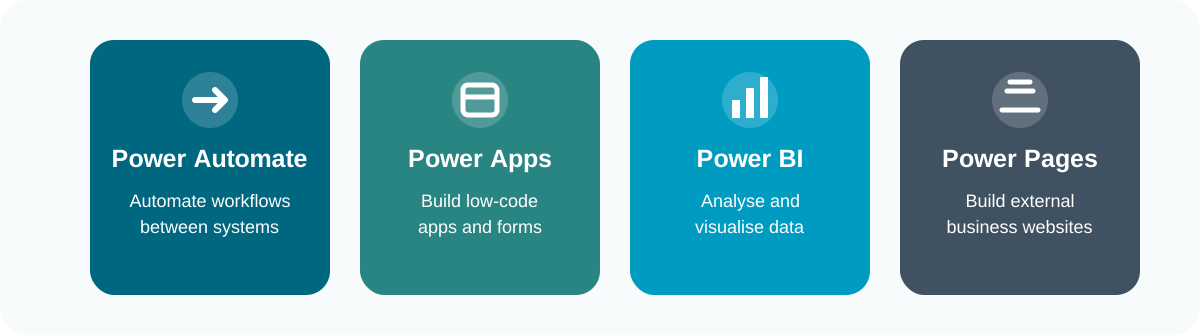
🧩 The key distinction is that Power Automate moves work between systems.
Most flows follow the same basic shape.
🔁 When debugging, inspect the flow in this order: trigger, data, decision, output.
Power Automate is a workflow automation tool. It is useful when a process has a repeatable pattern, a clear start point, and predictable next steps.
Good fit
Poor fit
A useful first question is not “can this be automated?” but “what decision, record, or communication should happen every time this event occurs?”
💬 If one of those answers is unclear, do a smaller manual or semi-automated version first.
The trigger controls the first assumptions the flow makes.
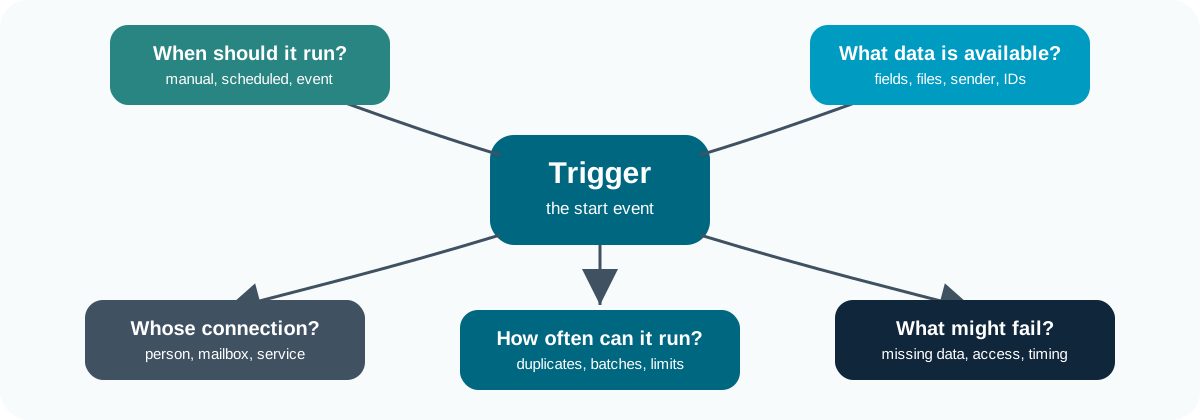
🚦 Choose the trigger that matches the real-world start of the process.
| Trigger pattern | Example | Useful when |
|---|---|---|
| Manual | Manually trigger a flow | A person chooses when the process starts |
| Scheduled | Recurrence | Work should happen at a known time |
| Event-based | When a file / form response is created | A system event should start the work |
| Email-based | When a new email arrives | Requests arrive in a mailbox |
🧪 The safest first build is usually manual. Once the logic works, you can replace the trigger with a form, email, SharePoint, or scheduled trigger.
Before choosing a trigger, ask:
🧩 Trigger choice is a governance choice. It affects permissions, ownership, auditability, and support.
Objective: Create a manually triggered flow and inspect the data made available by the trigger.
Test flow - your initials.Request summary.Your run should show:
A connector is the integration between Power Automate and another service.
Connectors provide:
📬 For example, the Outlook connector can trigger a flow when an email arrives and can also send an email later in the same flow.
Connectors are what let a flow work across services.
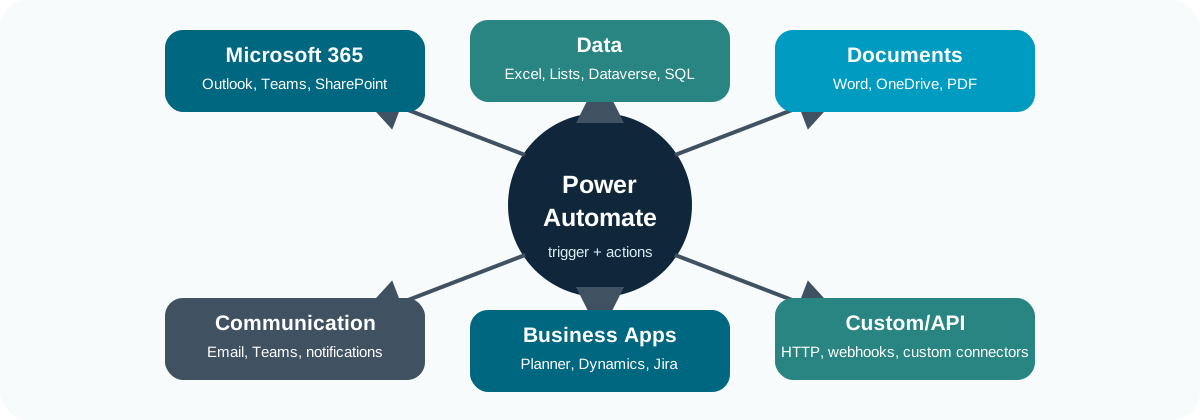
🔌 A connector is useful only if the connection has the right permissions.
Power Automate can handle many connector types.
| Connector type | Examples | Common use |
|---|---|---|
| Microsoft 365 | Outlook, Teams, SharePoint, OneDrive | Everyday collaboration workflows |
| Data | Excel Online, SharePoint lists, Dataverse, SQL Server | Reading and writing structured records |
| Documents | Word Online, OneDrive, SharePoint, PDF services | Creating, moving, and converting files |
| Communication | Outlook, Teams, notifications | Sending messages and alerts |
| AI and a lot more! | AI Builder, text analysis, document processing, external services | Extracting or transforming and disseminating content |
💳 Licensing can affect availability. Premium connectors may not be available to everyone.
Each connector action uses a connection. A connection is the signed-in identity that Power Automate uses to access a service.
This matters because:
🧩 For any flow that matters, document who owns it, which connections it uses, and where its official records are stored.
For important workflows, avoid relying on one person’s account where possible.
Better options may include:
🔐 Service accounts need governance. They should have only the access the flow needs, an owner, a support route, and a documented password or credential process.
Objective: Add an Outlook action and inspect the connection used to send the message.
Request summary.Request summary as the message body.Expressions are small formulas inside Power Automate. They are used when dynamic content needs to be changed before the next step uses it.

🧮 Use expressions when dynamic content is close, but not quite in the shape you need.
| Function | Use | Example pattern |
|---|---|---|
concat() |
Join text | concat('Request: ', variables('Title')) |
formatDateTime() |
Format a date | formatDateTime(utcNow(), 'dd MMM yyyy') |
toLower() |
Standardise text | toLower(triggerBody()?['text']) |
replace() |
Replace text | replace(value, '/', '-') |
split() |
Split text into parts | split(value, ';') |
🧹 Text and date functions are usually used to make messy input consistent before the next step uses it.
| Function | Use | Example pattern |
|---|---|---|
coalesce() |
Fallback for blanks | coalesce(triggerBody()?['text'], 'Not provided') |
if() |
Return one of two values | if(equals(x, y), 'Yes', 'No') |
equals() |
Compare values | equals(toLower(value), 'urgent') |
contains() |
Check whether text includes a value | contains(toLower(value), 'urgent') |
length() |
Count characters or items | length(outputs('List_rows')?['body/value']) |
🔎 Logic and list functions help the flow choose a path, check for missing data, or count what came back from a connector.
The whole point of Power Automate is that it is a low-code or no-code solution to automation.
To keep expressions maintainable, users should:
🏷️ For example,
Compose normalise request typeis clearer thanCompose 2.
User input is often incomplete. A flow should not assume that every value exists.
Common defensive patterns include:
coalesce() to provide safe fallback text;💬 Validation is part of automation. A flow that quietly sends bad data faster is not an improvement over a manual process.
Branching means sending a flow down different paths depending on a test. In Power Automate this is usually done with a Condition action.
Some common examples include:
urgent;Approve;🧭 Conditions should be readable. If the condition is hard to read, create a compose action immediately before it and test the compose output.
The process below treats urgent requests differently from standard requests.
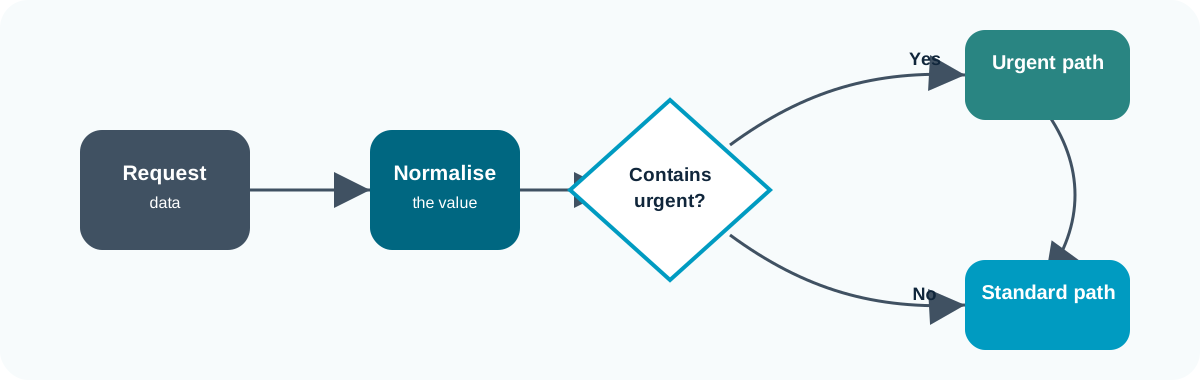
🔀 Keep condition tests readable so the run history explains the decision.
Objective: Use expressions to normalise request data, format a date, handle blank notes, and route urgent requests.
Formatted requested date and use formatDateTime() on the requested-by date.contains() so the response is true when the request text contains urgent.Urgent or Standard.Use run history to confirm:
Formatted requested date produces a readable date;Approvals add a deliberate human pause.
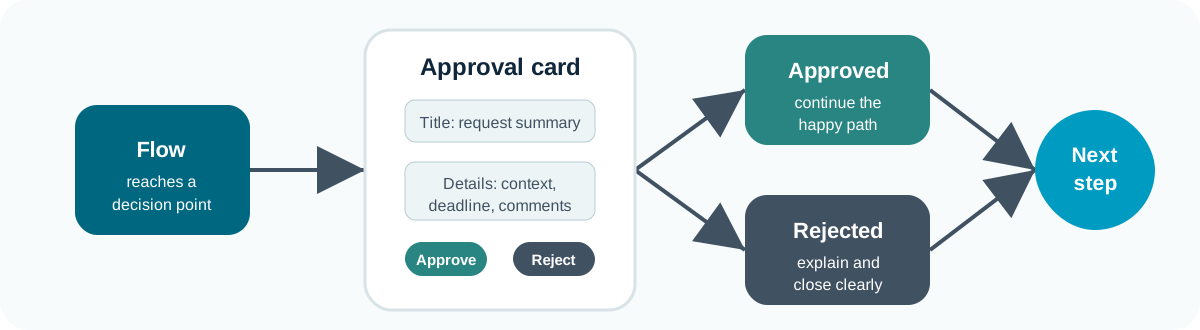
✅ Use approvals when judgement or accountability matters.
Approval can be incoperated into many processes, but generally are needed in cases where a business rule requires a human decision:
💬 not every flow needs approvals it is important to decide where they are appropriate.
| Pattern | Meaning | Use when |
|---|---|---|
| Approve/Reject - First to respond | Any one approver can decide | A named role handles the queue |
| Approve/Reject - Everyone must approve | All approvers must agree | The decision needs multiple sign-offs |
| Custom responses | More than approve/reject | You need options such as revise, defer, or escalate |
| Create approval only | Approval is created but not awaited | Another flow or process manages waiting |
| Start and wait | The flow pauses until a response | The next step depends on the decision |
⏸️ In this session we will use Start and wait for an approval because the flow needs to branch after the decision.
It is important that whomever is reviewing the process has enough infomation to make an informed decission, so before adding the action, define:
📝 An approval without enough context produces poor decisions. An approval without a record produces poor auditability.
The approval result should drive the next step.
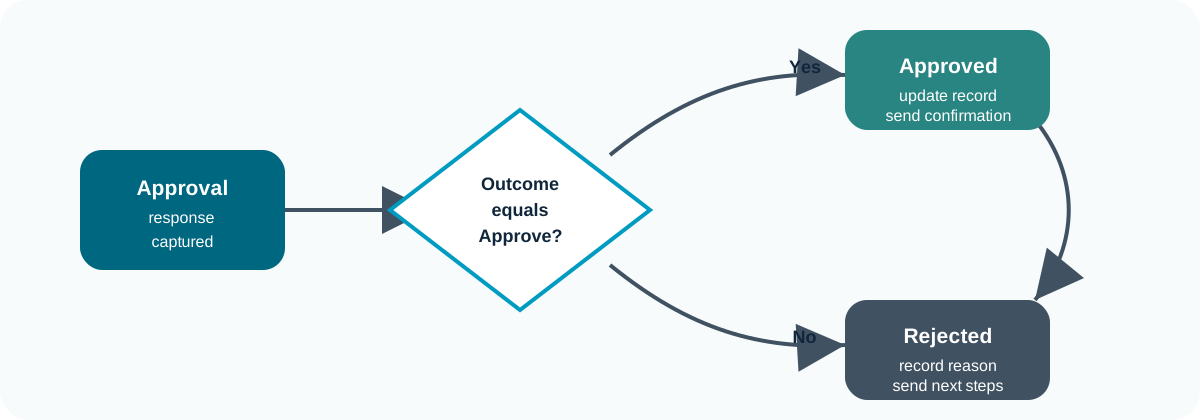
🛤️ A rejection is still a valid outcome, not a broken flow.
A good rejection branch should:
🚫 Do not treat rejection as failure. A rejected request is a successful flow outcome.
Objective: Add a human approval decision and handle both approved and rejected outcomes.
Use run history to confirm:
Many business processes start as a spreadsheet. Power Automate can turn each row into an action:
🧱 The key is structure. The workbook must behave like a small data source, not like a visual report.
Excel is often used as a lightweight tracker. Power Automate can work with Excel, but only if the workbook is structured correctly.
Note
The most important rule is that: Power Automate works with Excel tables, not arbitrary ranges of cells.*
📊 An Excel file full of values may look like data to a person, but the connector needs a named table so it can identify rows and columns reliably.
When using Excel online you need to set up the document correctly:
Set up the table
.xlsxAvoid
💡 Basically, keep it simple!
Excel mailouts work best when the table controls who is ready to receive a message.
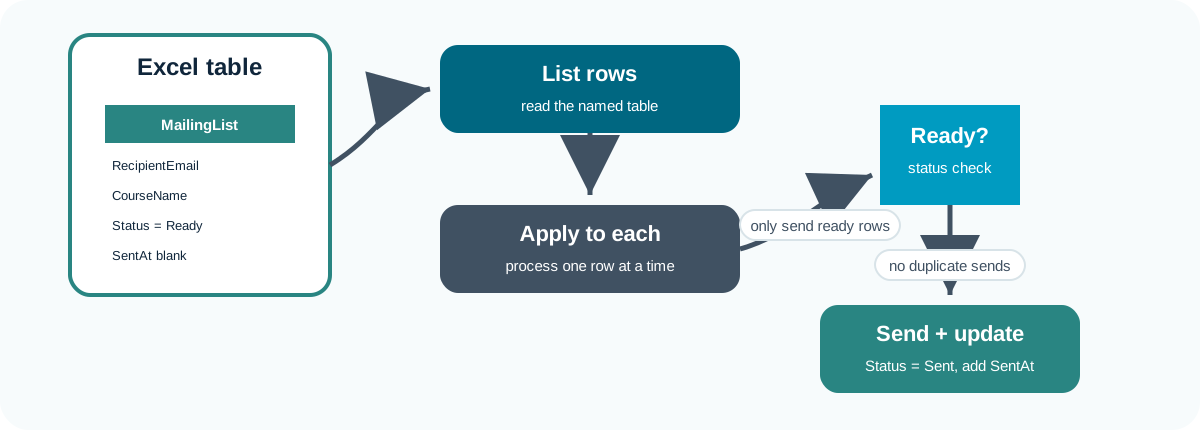
📧 Always test mailouts with safe addresses before using real recipients.
The List rows present in a table action reads rows from an Excel table.
Important details:
🔎 If the table does not appear, check that the workbook is saved in the right place and the range is actually formatted as a table.
Status flags stop the same row being processed repeatedly.
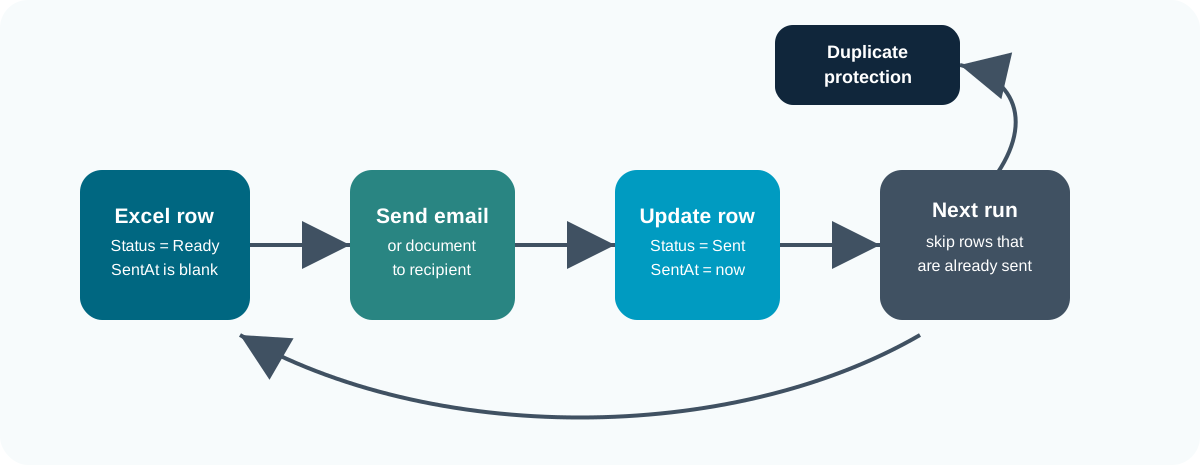
🧾 A tracker is only trustworthy if the flow writes back what happened.
Word templates turn each Excel row into a personalised document.
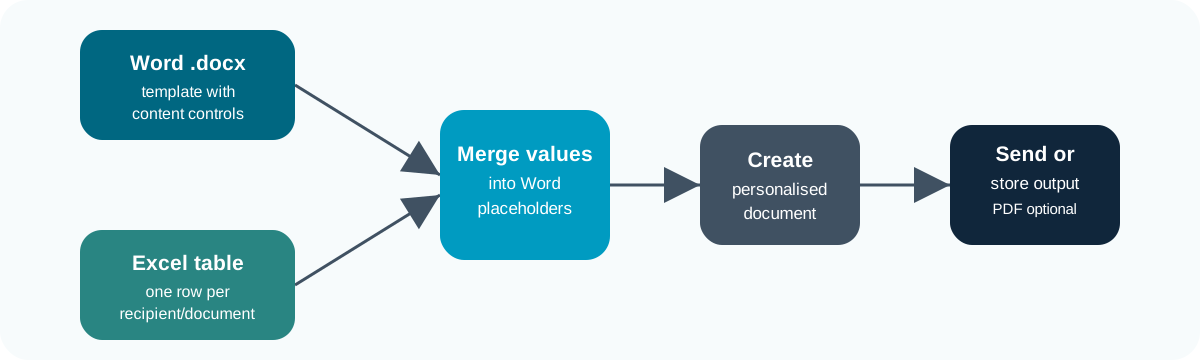
📄 This pattern is useful for certificates, letters, confirmations, and notices.
A typical pattern is:
.docx template.📨 If the Word template action is not available, the fallback is to build a personalised email body directly from Excel row values.
Use the provided examples for Task 5, or create your own files with the same structure.
📁 Upload copies to your own OneDrive or SharePoint area before using them in Power Automate.
Objective: Use an Excel table as a small mailing tracker and send personalised test emails from table rows.
Table1.First Name, Last Name, and Email.Table1.The final flow brings the main patterns together.
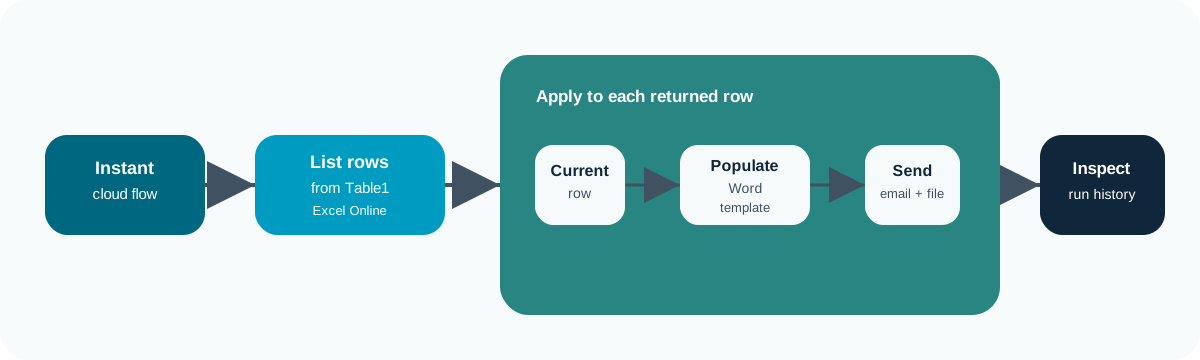
🏁 The same structure can be adapted to many admin workflows.

In this module you built and inspected small Power Automate flows that:
🧠 The technical steps matter, but the design choices matter more. A useful automation has a clear trigger, appropriate connectors, maintainable logic, a durable record, and an owner.
Status column before sending repeated or bulk messages.Useful next topics include SharePoint lists as workflow records, Dataverse, solution-aware flows, error handling with scopes, reminders and escalation, custom connectors, data loss prevention policies, and Power Automate Desktop.
