helloA 1
B 2
C 3
D 4
E 5
F 6
G 7
H 8
I 9
J 10| Block | Teaching | Activity | Output to keep |
|---|---|---|---|
| Workspace and scripts | 10 min | 5 min | A project and script |
| Calculations and assignment | 10 min | 5 min | A calculation with units |
| Types and vectors | 10 min | 5 min | Checked selections |
| Break | — | 10 min break | — |
| Packages and help | 10 min | 5 min | An annotated command |
| Errors and debugging | 10 min | 5 min | A diagnosed failure |
| Save and rerun | 10 min | 5 min | A checked script |
| Total | 60 min | 30 min | 100 min including the break |
This is lesson 1 of eight. Each five-minute activity includes a room response and debrief. Save work before the ten-minute break; use a practice copy and keep original inputs unchanged.
Complete Setup. Open the applied_R project and use the existing panel screenshots. No data import is required until lesson 2; the examples here use explicitly fictional values.
Imagine that a collaborator needs to rerun a small calculation next week. Commands typed only into a console are easy to lose; save the steps in a script and keep the related files in a project.
R is the language and computing environment. RStudio is the interface used here to edit scripts, inspect objects, manage files and view help. Its official user guide describes the interface and supported workflows.
Room check: ask pairs where their current spreadsheet, calculation or analysis script lives and what a collaborator would need to repeat it.
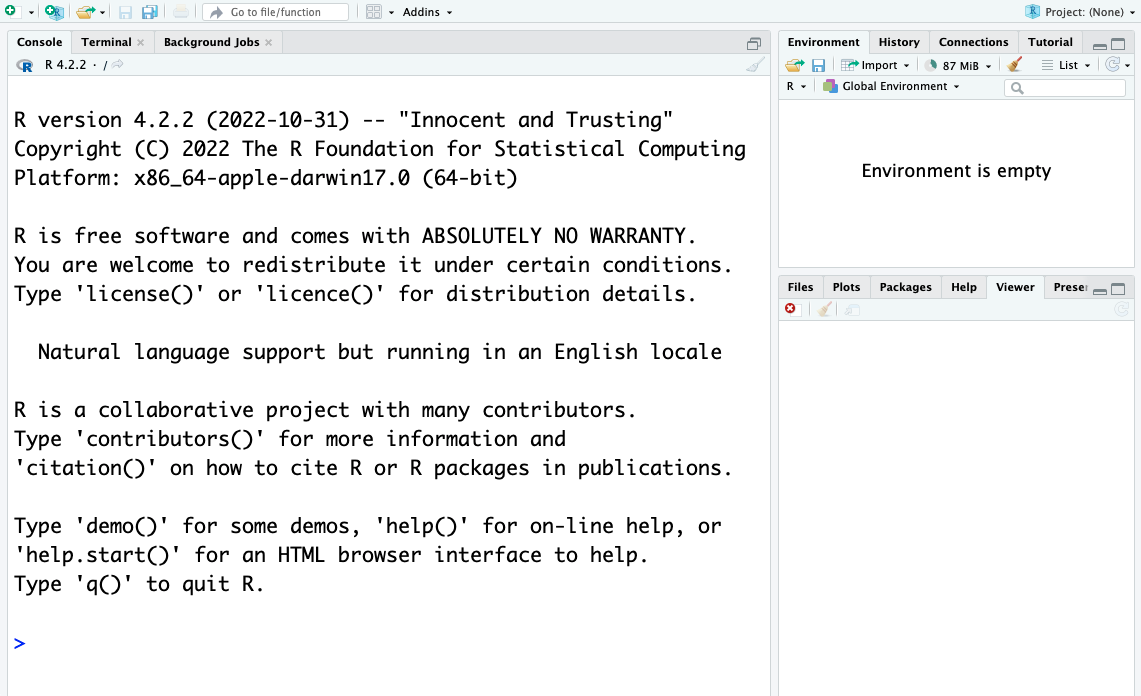
The screenshots illustrate the established panel layout; menu wording and appearance may differ in the installed version.
Choose File > New File > R Script. Save it as test.R in your applied_R folder. Add:
helloA 1
B 2
C 3
D 4
E 5
F 6
G 7
H 8
I 9
J 10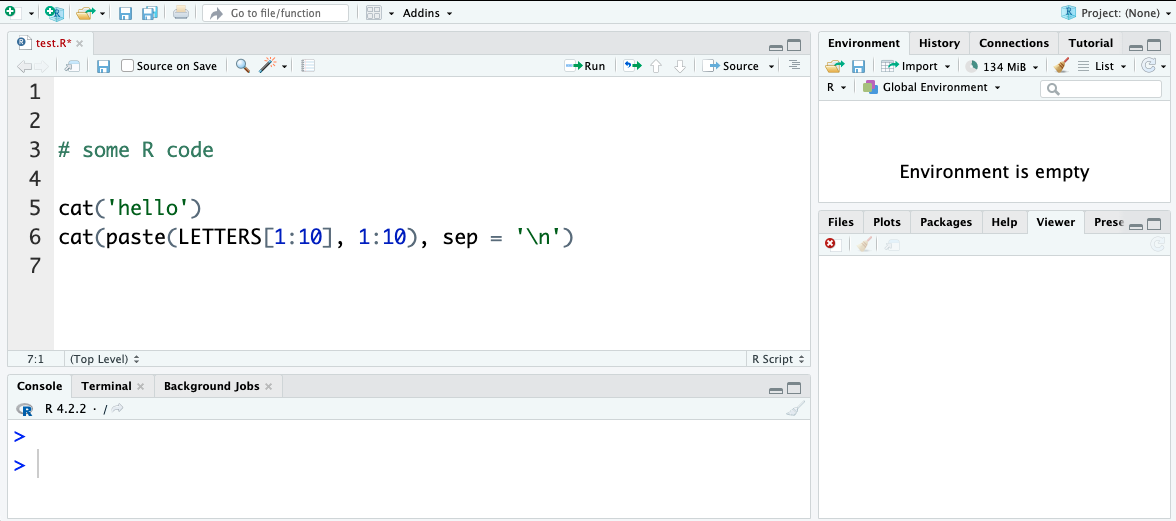
Run executes the selected code or current line. Source executes the complete script. Saving the script retains the instructions; the Environment panel shows objects in memory and is not a substitute for that script.
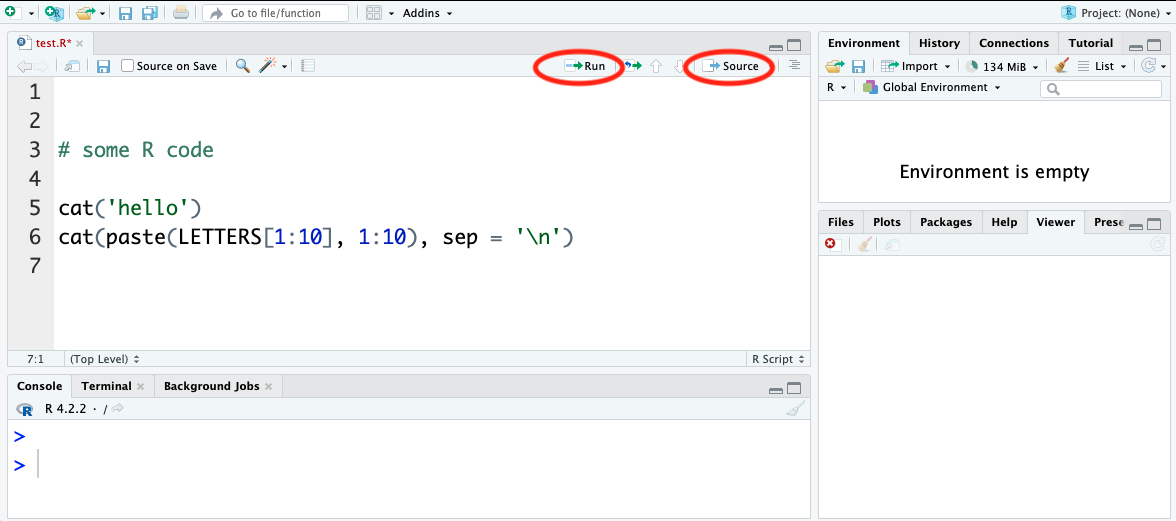
If you completed setup, open the existing applied_R project. Otherwise choose File > New Project > Existing Directory, select the folder containing your script and create the project. For a fresh folder, use New Directory > New Project.
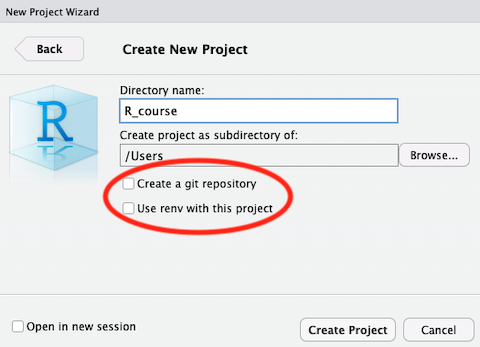
Opening the .Rproj file starts the project. Use paths relative to its folder, such as data/gapminder_data.csv, and use getwd() to check the working directory. The options to create a Git repository or use renv are useful extensions, not requirements for this session. See the Projects guide.
Goal: save a project and script that a partner can locate and run. Input: the applied_R folder and the two cat() commands above. Work in pairs.
test.R; compare Run on one line with Source on the full script.Keep: the project and script. If access fails: annotate the instructor’s panel screenshot and write the intended folder and filename.
The script retains the instructions; printed console output and objects in memory serve different purposes. A project makes file locations easier to explain, but a repeatable analysis still needs complete saved commands and checks.
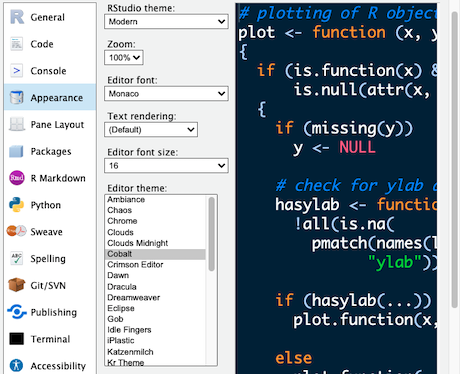
Text size, layout and editor themes can be changed in Tools > Global Options > Appearance, or the equivalent Preferences menu on your system. Choose a theme and text size that you can read; a dark theme is optional. See the Themes guide.
[1] 101 [1] 2 4 6 8 10 12 14 16 18 20 22 24 26 28 30 32 34 36
[19] 38 40 42 44 46 48 50 52 54 56 58 60 62 64 66 68 70 72
[37] 74 76 78 80 82 84 86 88 90 92 94 96 98 100 102 104 106 108
[55] 110 112 114 116 118 120 122 124 126 128 130 132 134 136 138 140 142 144
[73] 146 148 150 152 154 156 158 160 162 164 166 168 170 172 174 176 178 180
[91] 182 184 186 188 190 192 194 196 198 200[1] 13[1] 16[1] 2e-04The printed [1] marks the index of the first value on that output line. Parentheses change the order of evaluation. R uses the usual arithmetic precedence: parentheses, exponentiation (^), multiplication/division and addition/subtraction. Very small or large values may print in scientific notation.
[1] 0[1] 1[1] 0.841471Do not memorise every function. Use help and tab completion, then check the function’s arguments and units.
An unfinished expression gives the continuation prompt +. Try 18 * in the console, then enter 2 to complete it. Press Esc in RStudio, or Ctrl+C in a terminal, to cancel an expression when needed. The incomplete line is intentionally shown as text rather than an executable lesson chunk.
[1] TRUE[1] TRUE[1] TRUE[1] TRUEComparisons return logical values. Exact equality is appropriate for identifiers and exact values, but calculated floating-point values can differ by a small rounding error. all.equal() compares with a tolerance; isTRUE() converts its answer to a single logical result. Do not convert measurements to integers to make a comparison pass: that would discard their fractional part.
[1] 55[1] 121[1] 126.5These fictional teaching values use the original example’s approximate conversion factor, 2.2 pounds per kilogram. Assignment with <- gives a value a name; updating weight_kg does not automatically rerun an earlier calculation of weight_lb. Use = for named arguments when calling a function and follow the lesson’s <- assignment convention.
Goal: explain when a derived value is updated. Input: the weight calculation above. Work in pairs, swapping operator and checker.
3 + 5 * 2 and (3 + 5) * 2.weight_kg <- 55, calculate weight_lb, then update only weight_kg. Inspect both objects.Keep: the saved calculation and a note about rerunning derived steps. If access fails: trace the assignments on paper.
The arithmetic results are 13 and 16. A derived variable stores the result computed at that time; rerun its assignment after changing an input. Retaining units in names helps a collaborator recognise the conversion and its approximation.
| Type | Example | What it represents |
|---|---|---|
| Double/numeric | 3, 6.7 |
Numerical values, including fractional values |
| Integer | 2L, 42L |
Whole numbers explicitly stored as integers |
| Logical | TRUE, FALSE |
Results of tests or logical conditions |
| Character | "sample_01", "666" |
Text, even when it contains digits |
| Factor | factor(c("control", "treated")) |
Categories with defined levels |
Use typeof(), class() and str() to inspect objects. Factors occur in both base R and tidyverse workflows; inspect their levels and ordering rather than assuming a category is plain text. The R introduction explains these structures.
An atomic vector holds ordered values of one type. R indexing begins at 1.
[1] "integer" chr [1:5] "1" "2" "3" "4" "5"[1] "rat"[1] "dog" "rat"[1] "rat" "dog" "cat"[1] "mouse" "dog" "ape" The logical selection has one entry per animal. In later analyses, these logical values are often generated by a comparison. The selected order follows the indices supplied.
Goal: preserve values, names and order Input: animals and the numeric vectors above Work in pairs: one operates and one checks; swap roles between tasks.
animals[c(3, 2)] and state where indexing starts.Keep: the selections and one annotated index example. If access fails: annotate the instructor’s displayed input and output with the same decisions and checks.
R indexes from one. A supplied index order controls the output order; a logical selection should account for every input position.
Save your script before continuing.
Packages add reusable functions and datasets. See Setup for the packages used in this course.
Use installed.packages() to inspect installations, update.packages() to review updates and remove.packages("package_name") to remove an installation deliberately. RStudio’s Packages tab and Tools > Install Packages provide interface routes. An installed package is not necessarily loaded in the current session.
CRAN is the main package repository used here. Specialist packages may come from Bioconductor, GitHub or package archives. Check the source and installation instructions before using these; Bioconductor uses BiocManager. No additional repository is required for this foundations session.
Use ?paste, ?getwd or help("paste"). Use ??topic for a wider help search when you do not know the exact function. Read the description, arguments and examples before adapting a command.
RStudio also offers Code > Reindent Lines, Reformat Code and Comment/Uncomment. Its Help menu and the Posit cheatsheets provide compact reminders.
Goal: make one unfamiliar command understandable to a collaborator. Input: paste() and getwd() in the saved script. Work in pairs.
paste().sep, change it in one small example and predict the output before running it.getwd() to explain where a relative data path starts.Keep: an annotated example and a link or help command. If access fails: use the instructor’s displayed help page and write the predicted result.
Help connects the syntax to its meaning. sep controls the separator in paste(); a relative path is resolved from the working directory. A code snippet from another source still needs checking against your input and environment.
A misspelt object name is different from a scientifically unsupported calculation. Read the error and inspect the inputs before changing anything.
The factor is the original approximate teaching conversion, 2.2 pounds per kilogram. In the console, try the deliberately misspelt 2.2 * wieghts_kg; it should report that the object cannot be found. Correct the name, then check a known calculation rather than suppressing the error.
Use exact checks for identifiers and an appropriate tolerance for calculated floating-point values. Do not discard decimals to make a comparison succeed. Lessons 3 and 4 develop input contracts and explicit failure handling.
Goal: correct one cause and verify the result Input: the weight calculation and deliberate misspelling Work in pairs: one operates and one checks; swap roles between tasks.
Keep: the corrected code and checks. If access fails: annotate the instructor’s displayed input and output with the same decisions and checks.
The name error identifies an unavailable object; a known-value check then establishes that the calculation uses the intended input and approximation.
Save weights.R, restart R and source it. A saved .R script stores instructions; the current workspace stores objects. A collaborator needs all necessary assignments in the script, not your previously typed console commands.
  weight_kg weight_lb
1      55.0     121.0
2 57.5 126.5Lesson 2 develops lists, matrices, data frames, importing and observation-level checks. The original objects-and-data material remains there; keep the saved project for that work.
Goal: make a calculation independent of earlier console work Input: the complete weights.R script Work in pairs: one operates and one checks; swap roles between tasks.
Keep: a rerunnable script and a source check. If access fails: annotate the instructor’s displayed input and output with the same decisions and checks.
Fresh execution exposes missing setup steps. The known-value comparison checks meaning as well as execution; record the approximation and units.
You have a project, saved calculations and checked vector selections. Next, import and inspect research tables.