Interactive Research Dashboards with Shiny
💡 Learning Outcomes
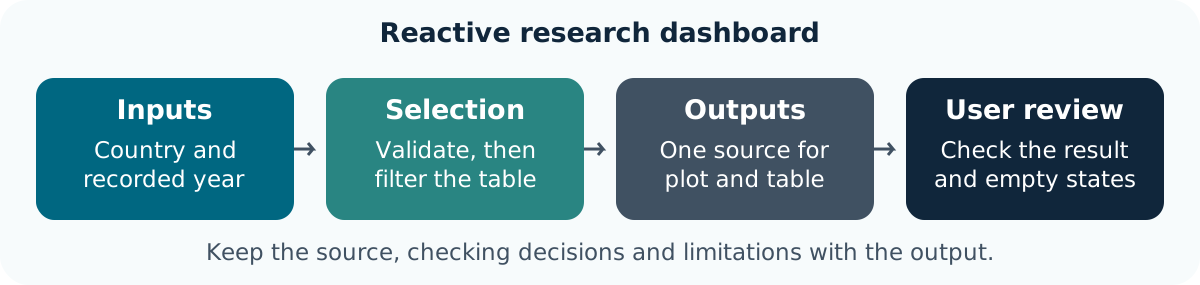
- Explain the relationship between an input, reactive selection and displayed output.
- Run and adapt a small Shiny app using the same checked analysis as the notebook.
- Check that plot, table and download agree after changing an input.
- Handle empty or invalid selections and describe the runtime/ownership needed for sharing.
❓ Questions
- Which calculation should run when the user changes a control?
- How can several outputs stay connected to one checked selection?
- What happens when the requested selection cannot support a result?
Structure & Agenda
| Block | Teaching | Activity | Output to keep |
|---|---|---|---|
| Purpose and app structure | 10 min | 5 min | An input/output map |
| UI controls and identifiers | 10 min | 5 min | A working control |
| Reactive data and outputs | 10 min | 5 min | A checked update |
| Break | — | 10 min break | — |
| Validation and empty states | 10 min | 5 min | A failure check |
| Download and peer testing | 10 min | 5 min | A reviewed output |
| Sharing and handover | 10 min | 5 min | An app and ownership record |
| Total | 60 min | 30 min | 100 min including the break |
This is lesson 8 of eight. Each five-minute activity includes a room response and debrief. Save work before the ten-minute break; use a practice copy and keep original inputs unchanged.
Starting Point and Preparation
Complete lesson 7 and use the same project download. Prepare Shiny before class using Setup. Run the complete app.R in local RStudio; these excerpts explain its code and do not start a server inside the course page. A shared-screen demonstration is a valid fallback.
Decide What the Dashboard Should Help Someone Do
A Narrow Research Question
The starter lets a colleague compare recorded life expectancy for chosen countries in one year. It shows the selected records and discloses missingness. The app uses the same analysis.R helper and original CSV as the notebook, so a user can trace the result to a checked calculation.
A dashboard is an interface to an analysis. Define the intended audience, task, units, source and limitations before adding controls. This historical aggregate example does not establish current conditions, individual outcomes or cause.
Inspect the App’s Parts
| Part | Purpose in the starter |
|---|---|
| Input and helper | Read the original CSV and check its keys/types |
ui |
Declare controls and places to display outputs |
server |
Validate inputs, select data and render outputs |
shinyApp(ui, server) |
Create the application from those two parts |
Open the extracted project and run:
shiny::runApp(".")Keep that R process running while using the app. Use Stop/Esc in RStudio to stop it. The official Shiny introduction provides a further walkthrough.
Task 1: Map the App before Editing (5 min)
Goal: identify the user question and its code path Input: the complete starter app and public CSV Work in pairs: one operates and one checks; swap roles between tasks.
- 1 min: State the user question and identify the observation level.
- 2 min: Run the app and locate its UI, server and shared helper.
- 1 min: Trace one displayed observation back to the original source.
- 1 min: Two pairs explain which responsibilities belong to the interface and which to the analysis.
Keep: an input-to-output map. If access fails: annotate the instructor’s displayed input and output with the same decisions and checks.
The app presents a bounded comparison. UI code is not a substitute for input checks, source context or scientific interpretation.
Give Controls and Outputs Consistent Identifiers
Read the User Interface
The starter creates a multiple-country selector and a recorded-year selector:
selectInput("countries", "Countries", choices = country_choices,
            selected = c("Ireland", "Brazil"), multiple = TRUE)
selectInput("year", "Recorded year", choices = year_choices,
            selected = max(year_choices))
plotOutput("comparison")
tableOutput("observations")
Control IDs connect to input$countries and input$year. Output IDs connect to the corresponding output$... names in the server. Labels help users understand the choice; an identifier connects code. A missing/mismatched output ID can leave a valid server calculation undisplayed.
Use choices derived from the data rather than inventing unavailable years. The two controls describe a country-year selection; they do not ask users to enter arbitrary paths or upload research files.
Task 2: Find a Missing Output Connection (5 min)
Goal: diagnose a mismatched UI/server identifier Input: a practice copy of app.R Work in pairs: one operates and one checks; swap roles between tasks.
- 1 min: Predict what happens if the UI’s
observationsID changes but the server does not. - 2 min: Make that one change, rerun and inspect the app.
- 1 min: Restore the matched ID and check the table appears.
- 1 min: Two pairs distinguish an undisplayed output from an empty dataset.
Keep: the restored app and connection explanation. If access fails: annotate the instructor’s displayed input and output with the same decisions and checks.
A correct calculation can be absent from the interface. Check the ID contract before changing the underlying data.
Reuse One Reactive Selection
Changes Travel through Dependencies
reactive() defines a calculation whose result can be reused by dependent outputs. In this app, a change to the selected countries or year invalidates the selection; the plot, table and coverage text use the updated result.
selected_data <- reactive({
    # Validate the controls first, as the full starter does.
    select_observations(research_data, input$countries, as.numeric(input$year))
})
output$observations <- renderTable({
    selected_data()[c("country", "year", "lifeExp", "pop")]
})
This abbreviated excerpt explains the dependency; use the complete starter’s validation when running the app. Calling selected_data() reads the reactive result. Copying separate filter code into every output risks inconsistent selections. See the reactive-flow guide.
Task 3: Check a Reactive Change (5 min)
Goal: verify that every output uses the same updated selection Input: the restored app and CSV Work in pairs: one operates and one checks; swap roles between tasks.
- 1 min: Predict the rows for Ireland and Brazil in 2007.
- 2 min: Change one country and then choose 1952.
- 1 min: Compare the updated table, plot and coverage with the corresponding original records.
- 1 min: Two pairs describe the dependency that caused the outputs to update.
Keep: two checked selections and an input/output record. If access fails: annotate the instructor’s displayed input and output with the same decisions and checks.
Reactivity repeats the linked calculation. Verify its values and scope; an updating chart alone does not show that the right records were selected.
Break (10 min)
Save the practice app before continuing.
Make Empty and Invalid States Understandable
Validate before Calculating
The complete starter supplies specific messages with validate() and need():
validate(need(length(input$countries) > 0L, "Choose at least one country."))
validate(need(all(input$countries %in% country_choices),
              "Choose countries from the recorded list."))
It also validates the year before converting the selector’s text to a numeric value. Converting a GUI choice deliberately is different from silently converting an input data column. The shared helper separately rejects invalid years, unknown identifiers and repeated country-year keys.
Keep Data Absence Distinct from Tool Failure
An empty choice should display a useful message. A missing source file should fail during loading with the path identified. Missing life-expectancy measurements remain in the table and are counted; the plot uses only observed measurements with an explicit caption. Do not invent a zero or swallow an unexpected error to keep the dashboard looking complete.
Task 4: Test an Empty Selection (5 min)
Goal: produce a useful state instead of a misleading result Input: the app and its validation code Work in pairs: one operates and one checks; swap roles between tasks.
- 1 min: Predict the response to clearing all country choices.
- 2 min: Clear the selection and inspect the messages; then restore a recorded country.
- 1 min: Compare the restored result with its source and record the expected state.
- 1 min: Two pairs explain why an empty selection is not evidence that a country’s value is zero.
Keep: an empty-state check and restored result. If access fails: annotate the instructor’s displayed input and output with the same decisions and checks.
Validation explains why a result cannot be displayed. It preserves the distinction between selection, missingness and an actual calculation failure.
Check a Download and Review with a Colleague
Export the Data behind the View
The download uses the same reactive selection, a fixed safe filename and an explicit blank representation for missing values. It retains the country/year identifiers and all selected source columns. Rounding in the displayed table is presentation only; the downloaded numeric values retain their precision.
output$download <- downloadHandler(
    filename = function() "country-year-selection.csv",
    content = function(file) write.csv(selected_data(), file, row.names = FALSE, na = "")
)
Read the downloaded file and compare keys, row count and measurements with the selected original records. Include the source context when sharing; a CSV alone does not explain units or interpretation.
A Small Test Matrix
| Case | Expected check |
|---|---|
| Two recorded countries/year | Plot, table and download agree |
| Another recorded year | All outputs update together |
| No country selected | Clear message; no fabricated result |
| Unknown year/identifier in tests | Validation rejects it |
| Missing source file in a practice copy | A useful loading error |
Task 5: Review the View and Download (5 min)
Goal: check that an exported file represents the same selection Input: the app and a downloaded CSV Work in pairs: one operates and one checks; swap roles between tasks.
- 1 min: Agree a two-country/year selection and expected row count.
- 2 min: Download it, read it back and compare identifiers and values.
- 1 min: A partner repeats one different selection and records its check.
- 1 min: Two pairs identify one test case that a screenshot would miss.
Keep: a checked CSV and small test matrix. If access fails: annotate the instructor’s displayed input and output with the same decisions and checks.
Test the data behind the presentation. Formatting and a plausible figure do not establish consistency between views and exports.
Further Information
📚 Key Points
- Retain the question, source, units and decisions with the result.
- Compare at least one output with an independent known value or source record.
- A successful run is one check; interpretation and limitations still need review.
🔦 Hints
- Save before restarting R and rerun from the beginning.
- Keep original inputs separate from derived outputs.
- Record unresolved questions instead of silently changing data to obtain an answer.
Module Summary
You have a small reactive research dashboard whose inputs, outputs, validation and source can be explained and checked. Keep the complete notebook/app project for reuse and peer review.
Additional Learning
- Learner Additional Material: practice, the shared project and official references.
- Reference: terms and checking reminders.