Additional Material
Additional Material
This page extends Power Automate Fundamentals with screen examples, a safe test matrix and a reusable handover record. Use Setup for access and the supplied files, and Reference for terms and troubleshooting.
The aim is not to memorise every button. The aim is to understand what each screen is asking you to decide.
How to Read a Flow Screen
Most Power Automate screens are asking one of five questions:
- What starts the flow?
- Which system does this step connect to?
- What data came from earlier steps?
- What should happen when a decision is made?
- How can I check what happened after the flow ran?
🧭 If you feel lost in the designer, name the step, identify the connector, and ask what data is going in and coming out.
Choosing a Trigger
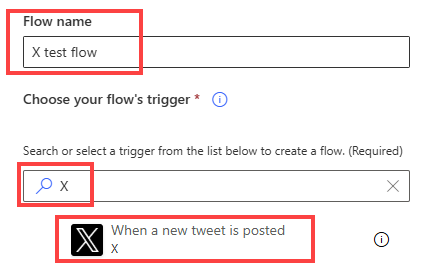
🚦 The trigger is the start line. Choose it based on how the real work begins, not based on the final action you want to perform.
Examples:
- Use a manual trigger when a person should decide when the flow starts.
- Use a scheduled trigger when work should happen every day, week, or month.
- Use an event trigger when a form response, file, item, or email should start the work.
Trigger Settings
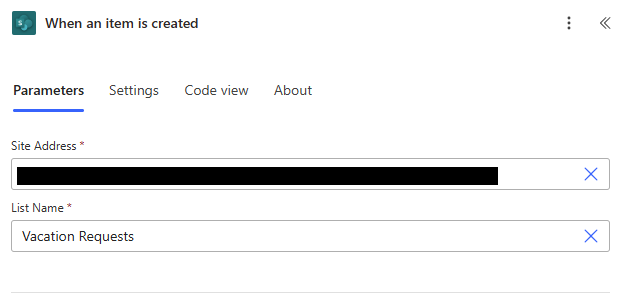
📍 Trigger settings tell Power Automate where to watch for the event.
For a SharePoint trigger, this usually means:
- Which site to watch;
- Which list or library to watch;
- Whether the flow should start when an item is created, modified, or both.
A common mistake is choosing the right connector but the wrong location. If a flow never starts, check the site, list, library, and permissions before rebuilding the whole flow.
Suggested Flows
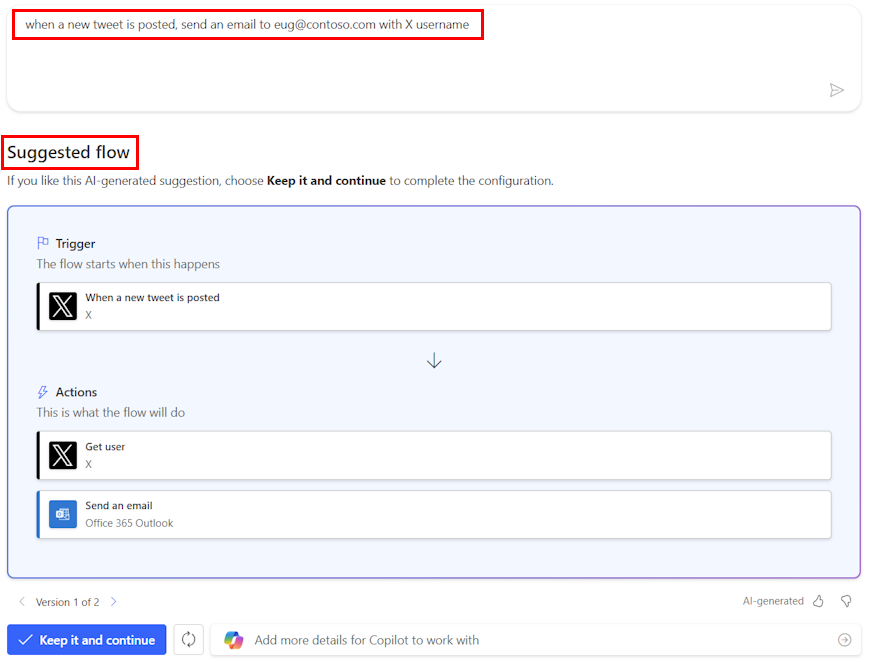
🧪 Suggested flows can be useful starting points, but they still need checking.
Treat generated or suggested flows like a draft:
- Check the trigger matches the real process;
- Check every connector uses the right account;
- Check where records are written;
- Test with safe data before using real recipients or live records.
Connectors in Plain English
A connector is the bridge between Power Automate and another service.
| Connector family | Examples | Plain-English role |
|---|---|---|
| Microsoft 365 | Outlook, Teams, SharePoint, OneDrive | Work with messages, files, sites, and collaboration tools |
| Data | Excel, Microsoft Lists, Dataverse, SQL | Read or update structured records |
| Documents | Word Online, PDF services | Create or transform documents |
| Approvals | Approvals, Teams | Ask a person to make a decision |
| Custom or premium | HTTP, custom connectors, third-party apps | Connect to systems outside standard Microsoft 365 |
🔌 The connector decides which system you are touching. The connection decides whose permissions you are using.
Useful Microsoft references:
Dynamic Content
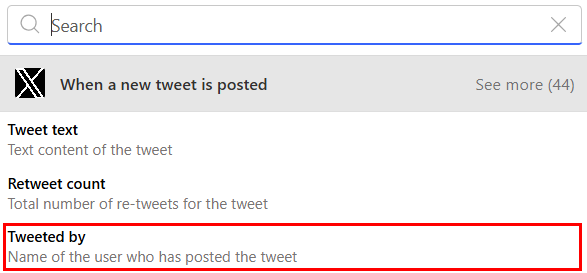
🧩 Dynamic content is data from earlier steps that you can reuse later in the flow.
For example:
- A form trigger might provide
Responder email; - An Excel row might provide
First Name; - An approval action might provide
Outcome; - An Outlook trigger might provide
SubjectandFrom.
Dynamic content is powerful, but it can also be confusing. If you are not sure what a value contains, run the flow once and inspect the run history.
Approvals
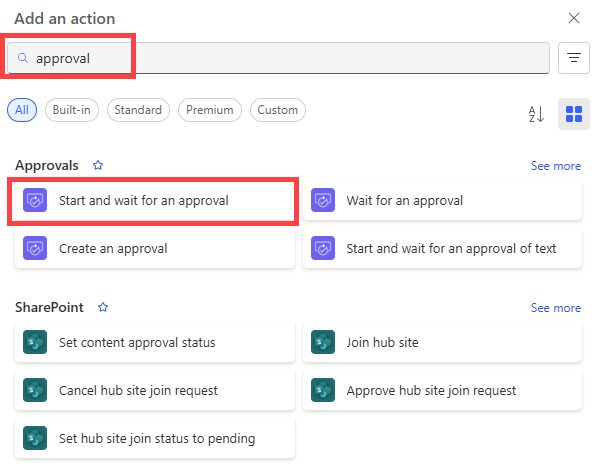
✅ Start and wait for an approval waits for a response before continuing. Choose an approval action that matches the intended workflow.
Use approvals when the next step depends on a human decision. Do not use them just to notify someone. If no decision is needed, send an email or Teams message instead.
Approval Details
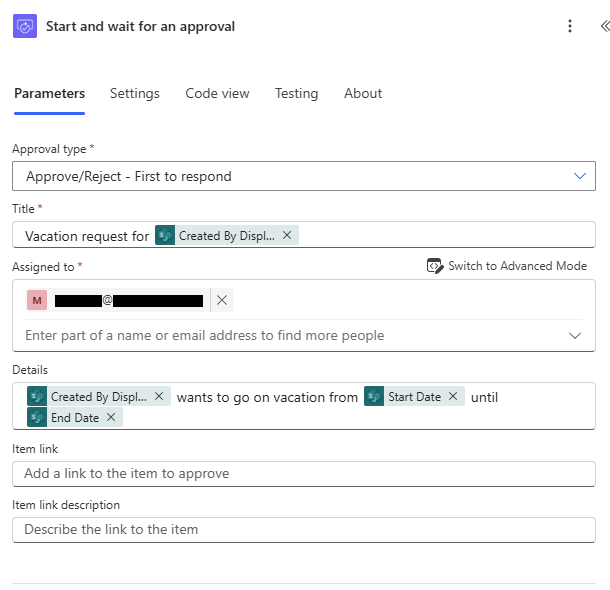
📝 A good approval gives the approver enough context to decide without opening five other systems.
Include:
- What is being requested;
- Who requested it;
- The key dates or deadlines;
- Links to useful documents or records;
- What approve and reject mean;
- Where comments or reasons will be recorded.
Branching After an Approval
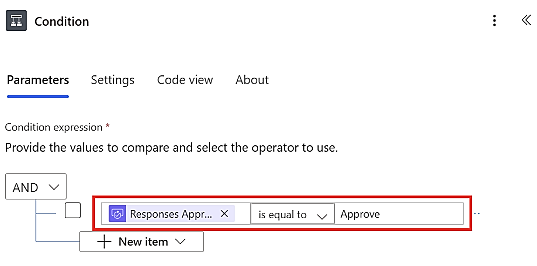
🔀 Approval is not the end of the flow. The outcome should route the next action.
Typical pattern:
- If approved, update the record and send a confirmation;
- If rejected, update the record and tell the requester what happened;
- If the approval times out, escalate or mark it for manual follow-up.
Rejection is not a technical error. It is a valid business outcome.
Approval Overview
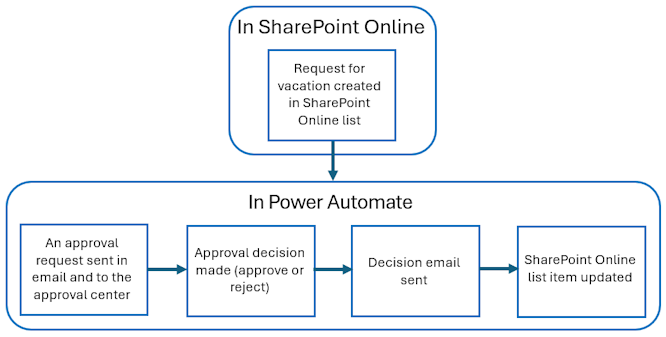
🧾 Approvals are useful because they create both a message and a decision record.
For important flows, think about where the official decision record should live:
- Approval history;
- An Excel tracker;
- A SharePoint list;
- A Dataverse table;
- A case management system.
Updating an Item or Record
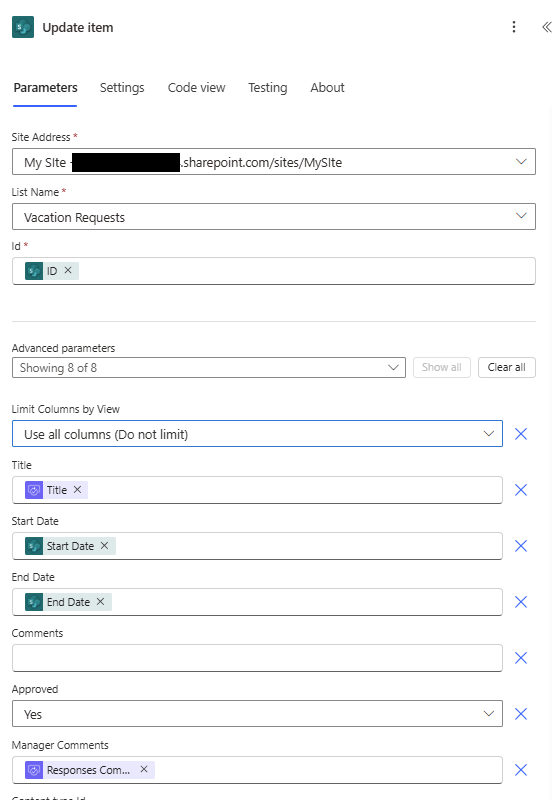
✍️ Update actions write the result back to the system of record.
This is what turns a notification flow into a process flow. A useful automation should usually leave a record behind:
- Status changed from
ReadytoSent; - Approval outcome recorded as
ApprovedorRejected; - Sent date written into
SentAt; - Owner or reviewer assigned;
- Comments stored somewhere findable.
Run History
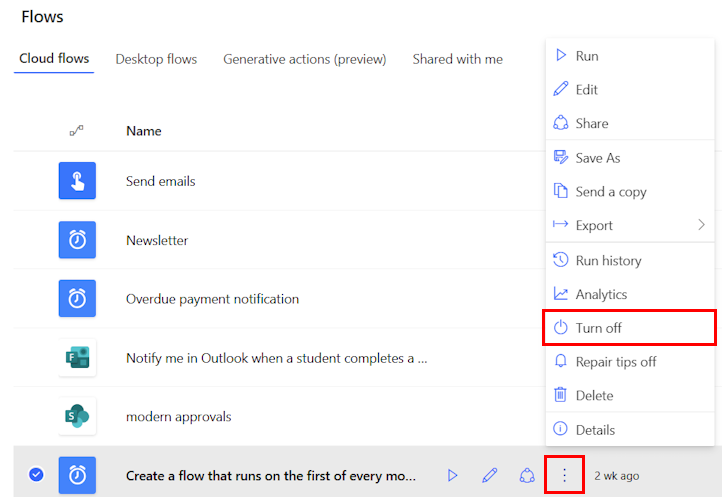
🔎 Run history is the first place to look when a flow behaves unexpectedly.
Use run history to check:
- Whether the flow started;
- Which step failed;
- What data each step received;
- What each step returned;
- Whether the wrong branch was followed;
- Whether a connector account had permission.
Do not debug by guessing. Run history shows the evidence.
Practice Files
These are the same files used in the workshop:
Use test rows and your own email address before trying any real process.
Safe Test Matrix
Do not judge a flow only by one successful run. Make a practice copy, keep test recipients under your control and use this matrix to decide what evidence to inspect. The results below are expected outcomes to design and test, not claims that the supplied workbook already implements these features.
| Test case | Expected behaviour | Evidence to retain |
|---|---|---|
| One valid request or row | Perform the intended action once and record its outcome | Relevant run steps, test message and source-record state |
| Missing required value | Stop or route for review with an understandable explanation | Validation outcome; confirmation that no unintended message was sent |
| Approval rejected | Record rejection and notify the requester appropriately | Rejection branch and durable decision record |
| Approval receives no response | Follow a defined timeout or manual follow-up route | Timeout handling and named follow-up owner |
| Same request or row processed again | Avoid an unintended duplicate, or flag it before repeating the effect | Stable request identifier or status check and repeat-run result |
| Action loses file access | Report the failed step and identify who can resolve it | Run error and escalation route, without sharing restricted inputs |
The supplied Excel table has only name and email columns. If you extend the design to track processing, add fields such as a stable RequestID, Status and SentAt to your practice copy, then update and test the mapping deliberately. Do not assume that the example already prevents duplicate sends.
Paired Practice: Design Two Tests (5 min)
Goal: identify checks that a single successful run would miss.
Input: the test matrix and a sketch of your workshop flow. Work in pairs.
- 1 min: choose one ordinary case and one failure or repeat case.
- 2 min: write the input, expected result and evidence needed for each.
- 1 min: the partner checks that the test cannot send to a real mailing list or alter a live record.
- 1 min: two pairs report their failure test to the room; the instructor asks who would respond if it happened.
Keep: the two-case test plan and the name of the role responsible for follow-up.
If Power Automate access is unavailable: inspect the flow sketch and write the tests without running them. Mark the results as untested.
Debrief: a useful test describes observable evidence, not just “the flow succeeds”. Rejection is an expected business outcome, and a technical failure needs a different handling route. Re-running a failed flow may repeat an action that already succeeded, so inspect the run and source state before retrying.
Flow Handover Record
Keep this record with the authoritative process documentation. Use role names where possible and avoid copying secrets or restricted run-history inputs.
Flow name and purpose:
Environment and location:
Process owner and maintenance contact:
Trigger, schedule or event:
Input locations and stable record identifiers:
Connections, account owners and access requirements:
Decisions requiring human review:
Authoritative record and status values:
Outputs, recipients and test recipients:
Repeat-run and duplicate-handling design:
Failure, timeout and notification routes:
Test cases, dates and outcomes:
How to pause the flow and resume safely:
Review date and changes still needed:
For a proposed live workflow, take the record to the relevant process owner or support team. Confirm access, ownership and maintenance arrangements before relying on it for a shared service.
Further Microsoft Learning
These Microsoft Learn pages are useful follow-up reading:
- Get started with Power Automate
- Use expressions in conditions
- Modern approvals in Power Automate
- Power Automate connector reference
- Error handling: run-after settings, scopes and retries
🎯 Read these as examples of patterns, not as scripts to copy blindly. Your flow still needs the right owner, permissions, test data, and record location.